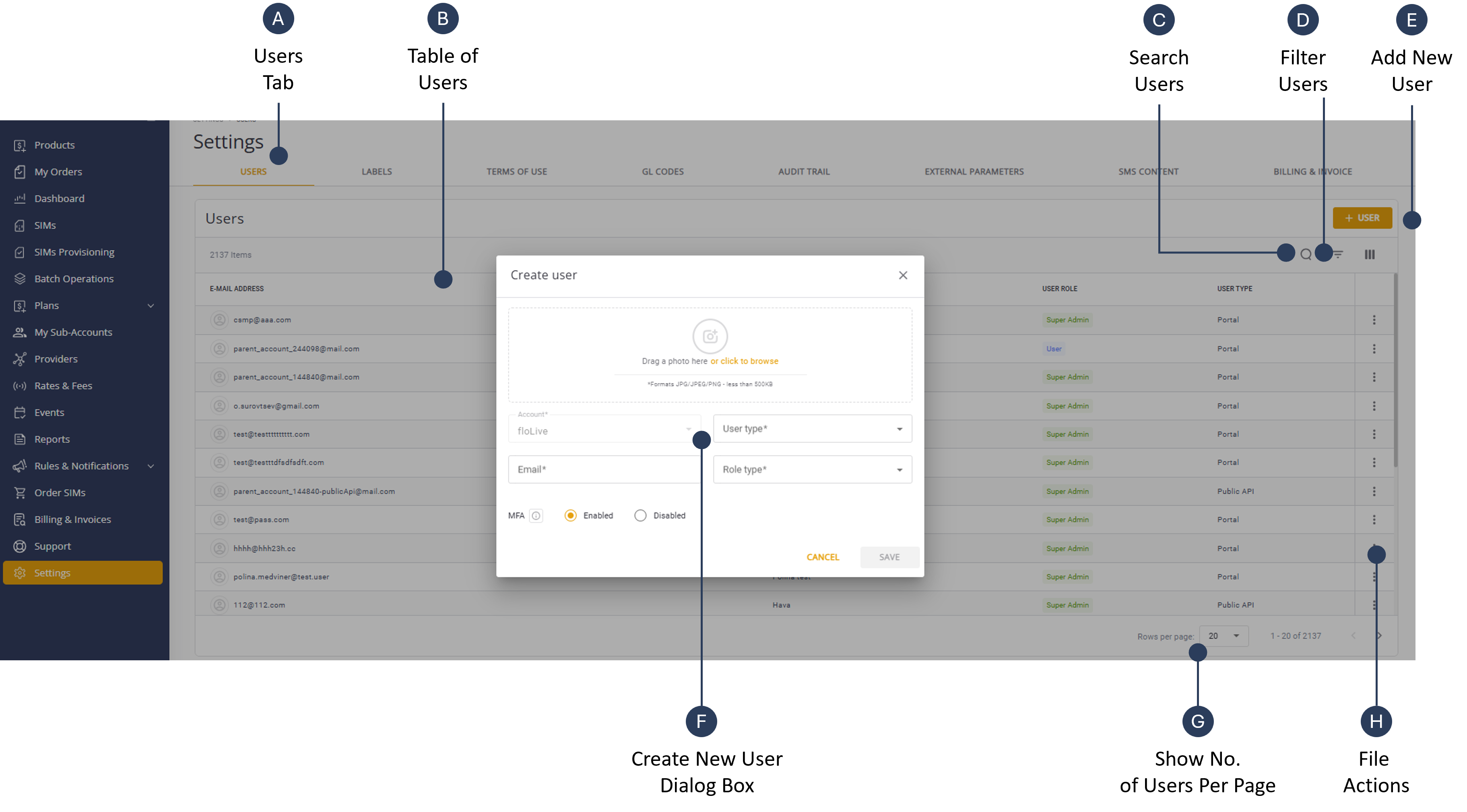
Add New User
To add a new user, do these steps:
- Select Settings from the sidebar menu.
- Select the Users tab to display a list of users.
- Click + User and to display the Add User dialog box.
- Select one of these options:
- My Account
- Sub-accounts
- Select an Account from the list.
- Select an appropriate User Type:
- Public API: Direct access to the floLIVE CMP PublicAPI.
- Portal: Access to the floLIVE CMP Portal.
- To add an avatar, drag and drop an image file in the specified area (optional).
- Enter a valid Email address.
- Select an appropriate Role Type:
- Super admin
- Support
- User
- Read only
- Enable Multifactor Authentication MFA if required.
- Click Save and then click Confirm create a new User.
A screen capture of the Create New User dialog box is shown here.